Story Sharing
Story sharing allows users of your app to share a link to a story on social media and other external platforms.
Configuring the Share Page
First, developers need to create a separate page on the website where they will integrate and configure one of InAppStory’s web-based SDKs.
You can use either the JavaScript or React SDK, depending on your preference:
Each time a user clicks a story share link, they will be redirected to this page. Once the page receives a storyID, it must display the web version of the story in the reader by calling showStory(storyID), an SDK method that opens a story by its ID.
Admin panel setup
-
Assign an address to this page so users can view the story there:
Example adress:
https://example.com/story/*. -
In the project settings in the Admin panel, the Manager must activate the sharing functionality by enabling the Allow share switch and specifying the address of the newly created page, for example:
https://example.com/story/{story}, where{story}is the story ID.
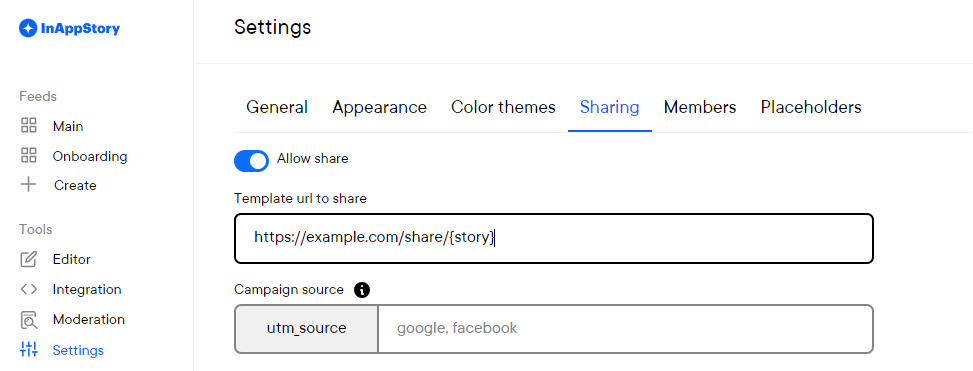
Icon activation
Developers must then enable the sharing functionality in the code:
- Android
- iOS, include in panelSettings
- JS
- React
- React Native
- Flutter
After completing all the steps above, the  icon will appear in the lower story panel. Users who open a story and click this button will be able to share it on social media or copy the story link:
 https://example.com/story/{story}.